The GuardsPro Subscription Page gives you complete control over your account in one convenient place. From here, you can: Switch between Monthly and Yearly billing, Review your current billing cycle, Monitor the number of active users, Check your subscription status, Pause or cancel your plan, Enable or disable add-on modules, View and download invoices, Manage multiple payment methods
Everything you need to manage your subscription is available in one centralized section — simple, transparent, and easy to use.
✅Step-by-Step Guide to Viewing and Managing Your Subscription in the GuardsPro Back-Office Dashboard:
Log in to your GuardsPro Back-Office Dashboard. Click on your company name at the top-right corner of the dashboard. In the dropdown, select “Subscription.”
Subscription Details
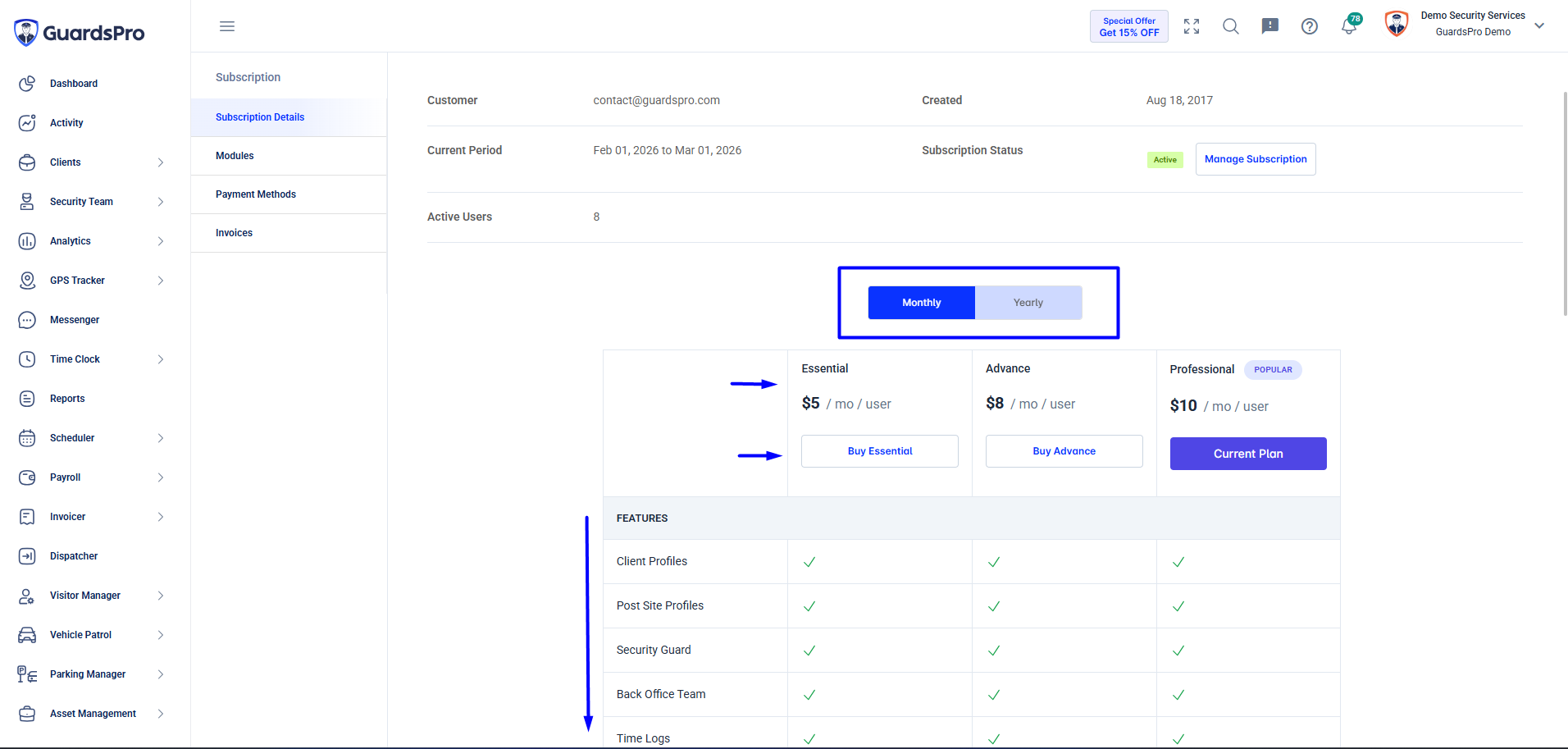
Here you will see an overview of your current subscription. The following screen will display subscription information about your account:
Customer Email ID : Displays the registered email address associated with the subscription.
Created : Shows the date your account was originally created.
Current Period : Indicates your active billing cycle (for example: Feb 01, 2026 to Mar 01, 2026).
Billing Cycle : Specifies whether your subscription is set to Monthly or Yearly (Annual) billing.
-
Subscription Status : Displays the current state of your subscription, such as:
Active – Your subscription is currently valid and fully operational.
Paused – You can pause your subscription up to a specific period of time (up to 6 Months). The subscription will automatically resume after the selected period.
Canceled – Your subscription has been terminated.
If the subscription becomes inactive or expires, the status will update accordingly.
You can click Manage Subscription to update your billing information or make changes to your plan.
Active Users
Shows the total number of users currently included in your subscription. This count includes both Security Guards and Back-Office Users.
⚠️ Note: Billing is calculated based on the total number of active users in your account.
Next, the screen also displays the details of your selected plan, including whether it is set to Monthly or Yearly billing.
To change your plan:
Click Buy under the plan you want to subscribe to. Follow the on-screen instructions to confirm the update. Once confirmed, your subscription will be updated according to the selected plan and billing cycle.
Available Plans
Review the available plans carefully and select the one that best fits your company’s operational needs:
Essential
Advance
Professional
Select your preferred plan to proceed with the subscription update.
Modules
GuardsPro offers various add-on modules that can be enabled or disabled based on your business requirements. The Modules page displays three main columns:
Module : Displays the name of the module along with a brief description of its functionality.
-
Price : Shows the cost of the module. Pricing may be
Per User / Per Month (e.g., $1 / Month / User)
Fixed Monthly Rate (e.g., SMS package pricing)
-
Status : Indicates whether the module is:
Active – The module is currently enabled and available for use.
(If disabled, the status will reflect accordingly.)
Available Modules
Below are examples of modules you may see in your account:
Visitor Manager : Manage visitors at your post sites.
Invoicer : Creates estimates and invoices for your customers directly from the system.
Dispatcher : Manage and track dispatch calls efficiently.
SMS Engine: Enable SMS notifications (e.g., 1000 SMS per month packages available).
You can click Change Quantity to increase or decrease your SMS package.Scheduler : Manage guards schedules, attendance and time- off requests.
Payroll : Process and manage guard payroll.
Vehicle Patrol : Manage and monitor vehicle patrol operations.
Parking Manager: Manage parking vehicles and parking related incidents.
Asset Management : Easily manage company assets and inventory.
To manage a module, click the three-dot menu (⋮) next to the module name. From there, you can enable or disable the module. Applicable charges will be reflected in your invoice accordingly.
Payment Methods
The Payment Methods section allows you to manage your billing methods.
Click Add Payment to add a new payment method.
You can update or manage existing payment details as needed.
Invoices
The Invoices section allows you to:
View current and past invoices
Check payment status
Download invoices directly from the dashboard
Simply click the Download option next to the invoice status.
If you have any more questions, please feel free to contact our support team anytime.
Comments
0 comments
Please sign in to leave a comment.