The Bulk Import Vendors feature allows you to add multiple asset vendors at once using a CSV file. This helps save time, reduce manual entry, and keep vendor records consistent.
✅This guide helps you to import vendors in bulk for assets in the back office dashboard :
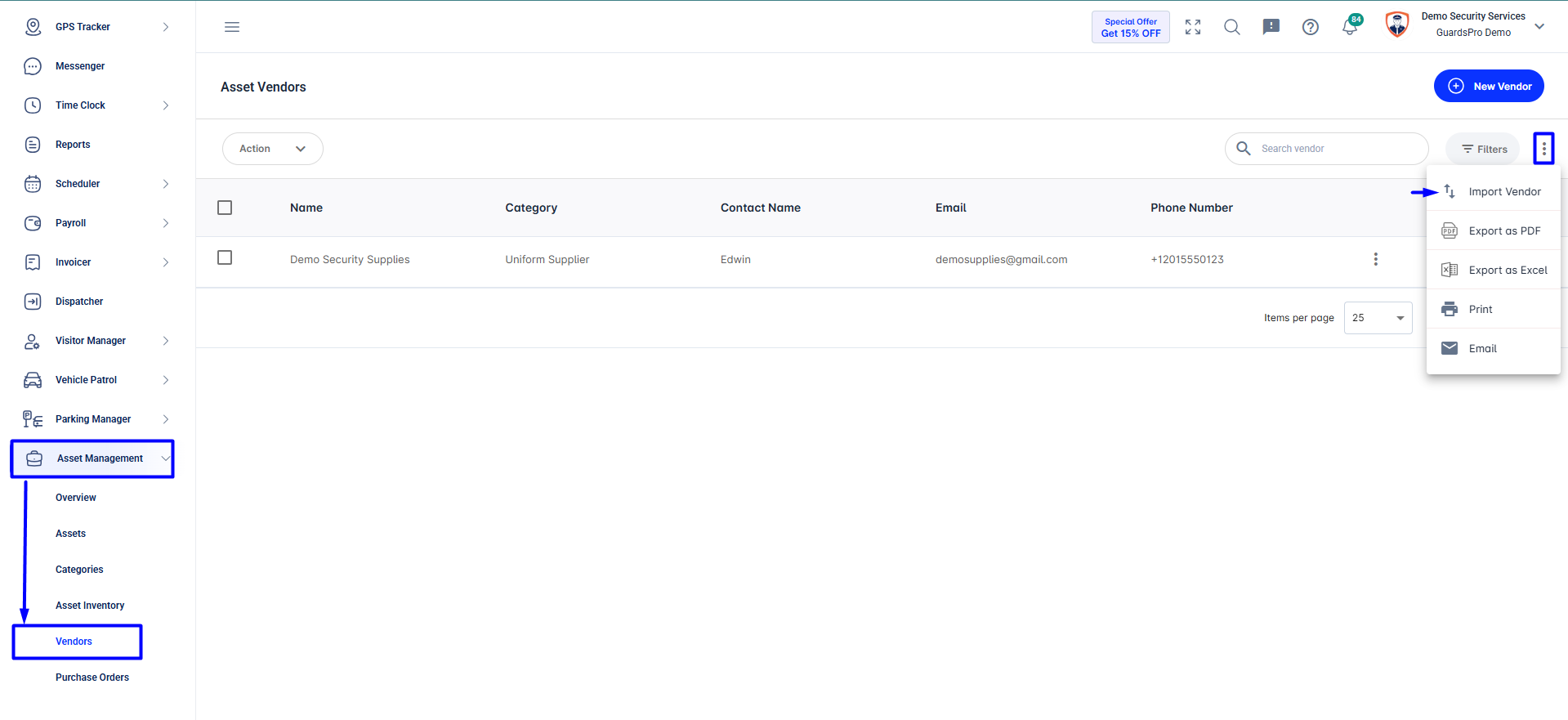
Log in to the GuardsPro Back Office Dashboard. From the left-hand menu, go to Asset Management and select Vendors.
You will be redirected to the Asset Vendors page.
Click the three-dot (⋮) menu at the top-right of the Vendors page. Select Import Vendor from the dropdown.
Download the Template
Next, In the import popup, click Download to download the Excel/CSV template and fill up the required fields.
Download the excel template from here.(Download)
Before uploading, please make sure of the following points
Add vendor details correctly.
Required fields is vendor name.
Allowed values for Payment Term : Prepaid, COD, Net 7, Net 15, Net 30, Net 45, Net 60, Net 90, Due on Receipt, Installment, Credit Account, Other
Allowed values for Preferred Payment Method : Credit Card, Bank Transfer, Cash, Other
Allowed values for Preferred Shipping Method : Courier Service, Freight/Cargo, Postal Service, Pickup by Company, Digital Delivery, Other
Important Note: Make sure all required fields are filled correctly. Invalid or unsupported values may cause the import to fail. Follow the template structure strictly to avoid errors.
Upload the CSV File : Save the completed file in .CSV format on your computer. Upload the file in the designated upload section. Submit the file to complete the import and that's it.
Once the import is complete, all vendors from the CSV file will appear in the Asset Vendors list. You can use the filters to view vendors by category and easily edit or archive vendors as needed.
Export and Share Vendor list
Click the three-dot (⋮) menu next to the Filters option to access the following actions:
Export as PDF – Download vendor list in PDF format
Export as Excel – Download vendor list as an Excel file
Print – Print the vendor list
Email – Send the asset vendor report via email
Bulk importing vendors helps streamline asset procurement, improves data accuracy, and simplifies vendor management across your operations.
If you have any more questions, please feel free to contact our support team anytime.
For a quick walkthrough, please watch our tutorial video on YouTube here :
Comments
0 comments
Please sign in to leave a comment.