Time Logs provide a chronological record of guards’ shifts and breaks. If a guard works multiple shifts at the same post site on the same day, each shift and its associated breaks are displayed separately.
It helps you to monitor guard punctuality and schedule compliance, review and approve shift and break entries, track hours used to generate Time Cards, and support accurate payroll processing.
📌 Prerequisites
Before you begin, ensure the following requirements are met:
You have access to the Time Clock > Time Logs section.
Guard clock-in/out records have been generated in the system.
You have the required permissions to approve or manage Time Logs.
✅ This guide explains how to review, approve, manage, and automate Time Log approvals from the Back Office Dashboard.
🔎Step 1: Navigate to Time Logs
- From the main menu, go to Time Clock > Time Logs.
- The Time Logs page displays all recorded shift and break entries.
- Use the available filters to quickly locate the required entries.
✅Step 2: Approve an Individual Time Log
You can review and approve a time log individually.
- Locate the required Pending time log.
- Review the clock-in time, clock-out time and total duration.
- Click the Pending status under the Duration column.
- Confirm the pop-up action to approve the log.
- The status changes from Pending to Approved.
⚙️Step 3: Manage a Time Log Entry
You can edit, approve, delete, or review the activity history of an individual time log.
- Locate the time log entry you want to manage.
- Click the More (⋮) icon next to the entry.
- Select the required action:
- Edit – Update details such as the clock-in or clock-out time when corrections are required.
- Delete – Permanently delete an incorrectly created or unnecessary time log.
- View Logs – Review the activity and changes made to the time log.
- Approve – Approve a pending time log after verifying its details.
- If you select Approve, the time log status changes from Pending to Approved.
📌 Important: Always verify the time log details before approving an entry, as approved entries may be used to calculate hours and payroll. Deleted time logs cannot be recovered.
📋Step 4: Bulk Approve, Disapprove, or Delete Time Logs
You can manage multiple time logs at once by using filters to find and select the required entries.
- Go to Time Clock > Time Logs.
- Use the available filters to narrow down the records.
- Select the time logs you want to manage.
- Click Action at the top.
- Select the required action:
- Approve – Approve the selected time logs.
- Disapprove – Disapprove the selected time logs.
- Delete – Permanently delete the selected time logs.
- Confirm the action, if prompted.
📌 Important: Deleted time logs cannot be recovered. Carefully review the selected entries before choosing Delete.
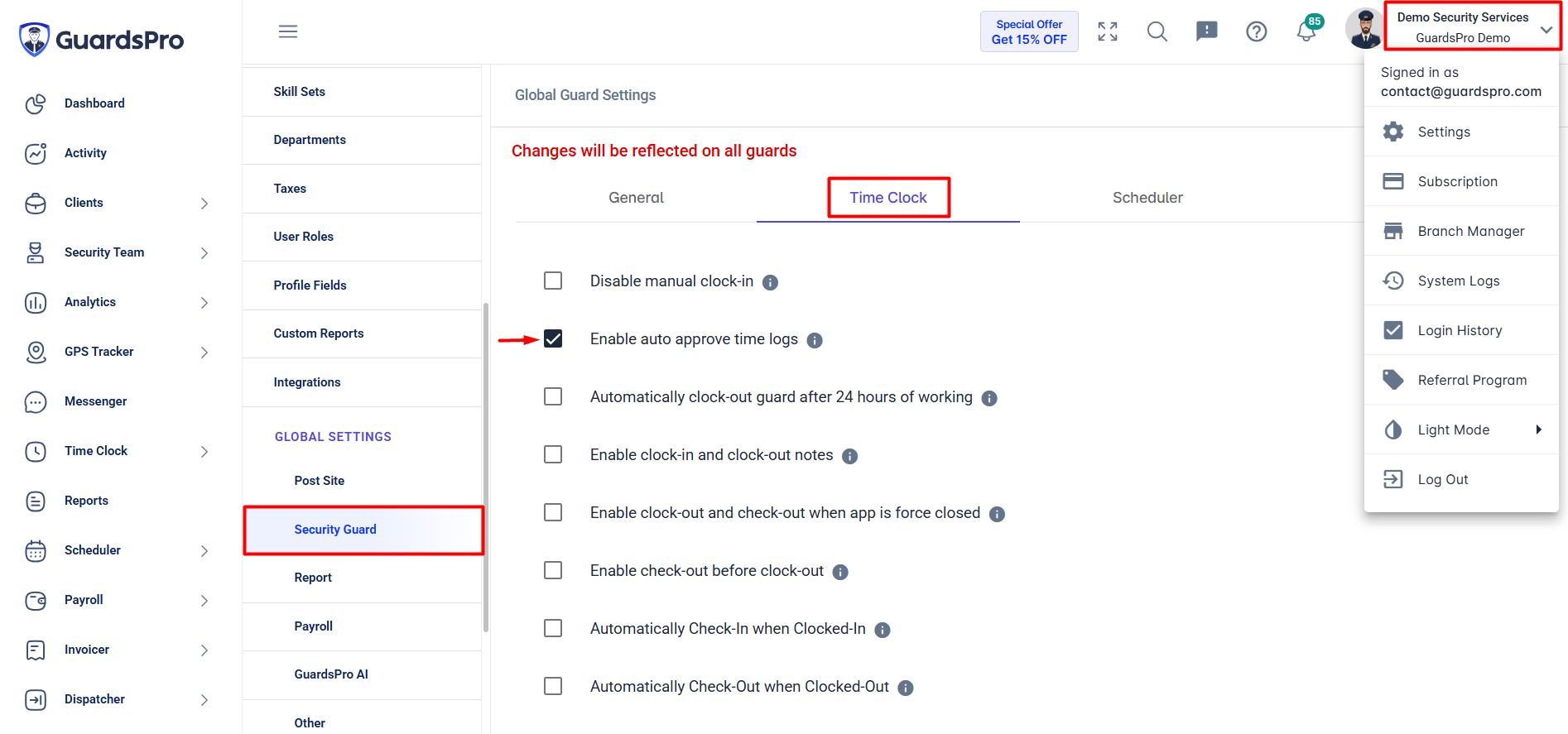
🤖Step 5: Enable Auto-Approval for All Guards
If you want to eliminate manual approval, you can enable Auto Approve Time Logs. Once enabled, time logs generated from guard clock-in and clock-out activities are automatically approved.
- Click your Company Name in the top-right corner.
- Select Settings.
- Under Global Guard Settings, open the Time Clock tab.
- Enable Auto Approve Time Logs.
- Click Save.
📌 Important: This setting applies to all guards in the organization. Once enabled, time logs generated from guard clock-in and clock-out activities will be automatically approved.
👤Step 6: Enable or Disable Auto-Approval for an Individual Guard
You can configure the auto-approval setting for an individual guard when you need a different setting from the company-wide configuration.
- Go to Security Team > Security Guards.
- Select the required guard.
- Open the Settings tab.
- Navigate to the Time Clock section.
- Enable or disable Auto Approve Time Logs as required.
- Click Save.
📌 Important: The individual guard setting overrides the global Auto Approve Time Logs setting for that guard.
🎯 That's It!
Regularly reviewing and managing Time Logs helps maintain accurate shift and break records, monitor schedule compliance, and ensure the correct hours are reflected in Time Cards and payroll.
📌 Important: Only approved Time Log entries are reflected in the Time Card.
If you have any questions or need assistance, please contact the GuardsPro Support Team.
Comments
0 comments
Please sign in to leave a comment.